2. Hardware Setup and Configuration
This section covers the hardware setup and software configuration required to prepare the AM62D EVM for running EdgeAI inference applications.
2.1. Hardware setup
2.1.1. AM62D EVM
The AM62D EVM is a development board for audio AI applications built around the AM62DX processor with a dedicated C7x™ DSP for neural network inference and digital signal processing.
To run the demos on the AM62D EVM you will require:
Minimum 16GB SD card
USB2.0 Type-C ports (5V‐15V input range)
USB-to-UART cable for serial console access
Audio input source (e.g., microphone) connected to J1/J2 3.5mm TRS Port
Audio output device (e.g., headphones) connected to J3/J4 3.5mm TRS Port
Required: Ethernet cable for remote access via DP83867-EVM-AM
Connect the components to the AM62D EVM as shown below:
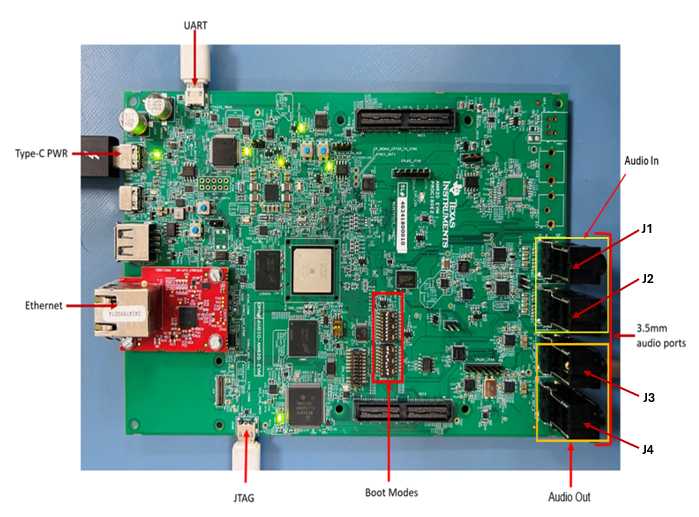
Fig. 2.1 AM62D EVM layout showing connectors, switches, and boot mode selection
Refer to the AM62D Quick Start Guide for detailed information about AM62D EVM layout and component locations. For more information, visit AM62Dx EVM User guide
2.1.2. Boot Mode Configuration
Set the BOOTMODE switches to SD card boot mode before powering on:
BOOTMODE [8:15] (SW3) = 0100 0000
BOOTMODE [0:7] (SW2) = 1100 0010
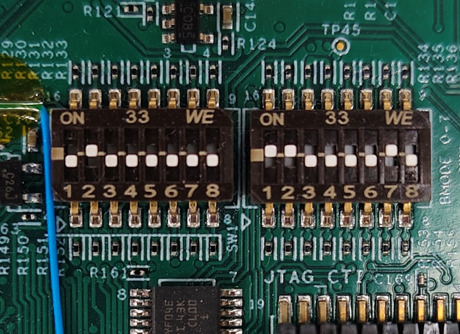
Fig. 2.2 AM62D EVM boot pin configuration
2.1.3. Audio Connectors
Connect audio input source to J1 and J2 TRS 3.5mm Jacks (PCM6240 ADC input) (Refer Fig: 2.1)
Connect audio output to speakers/headphones via J3 and J4 TRS 3.5mm Jacks (TAD5212 DAC output)
2.2. Software setup
2.2.1. Preparing SD Card Image
Download the latest Processor SDK Linux AM62DX image from:
Look for the file: tisdk-edgeai-image-am62dxx-evm.rootfs.wic.xz
Download Balena Etcher from https://www.balena.io/etcher/ and flash the image:
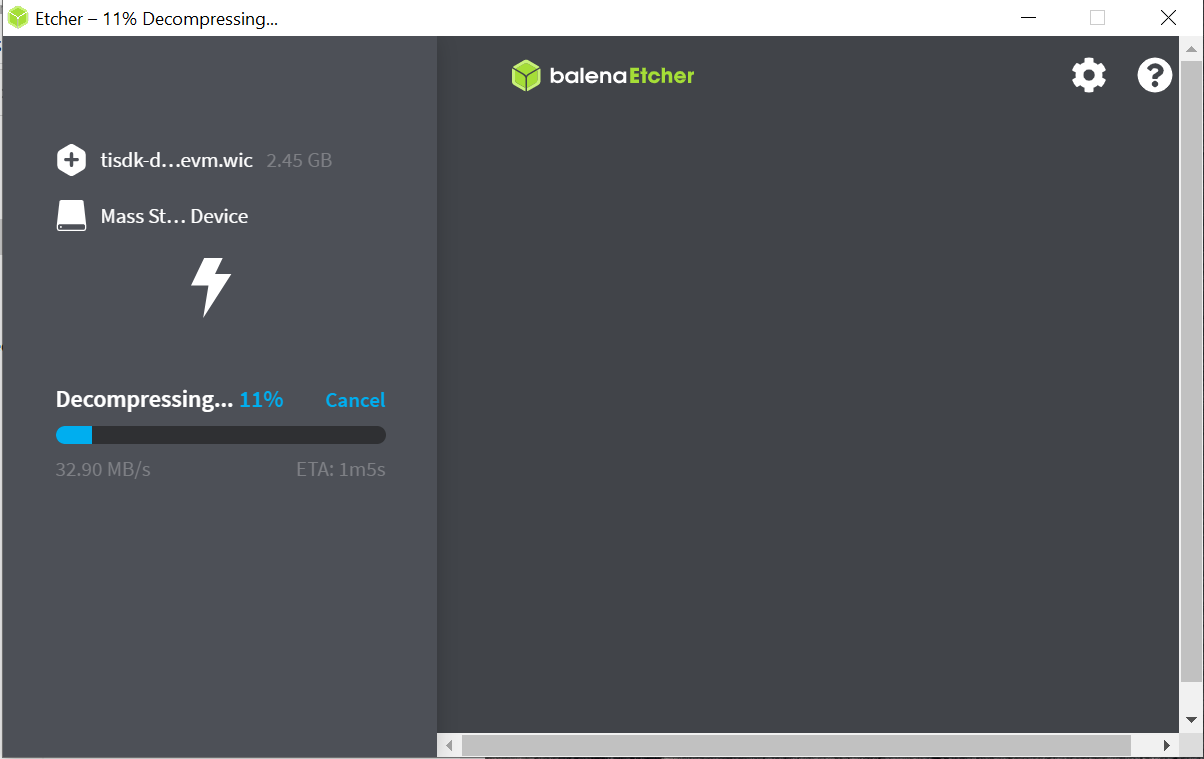
Fig. 2.3 Balena Etcher SD card flashing tool
Insert SD card into card reader connected to host PC
Launch Balena Etcher
Click “Select image” and choose the downloaded
.wic.xzfileClick “Select target” and choose the SD card device
Click “Flash” to start flashing (this may take 10-15 minutes)
Wait for completion confirmation
Safely eject the SD card
Note
Tested with Balena Etcher version 1.7.0. Some issues reported with version 1.7.2. If flashing fails, try a different version or use the dd command on Linux.
2.2.2. Power ON and Boot
Ensure that the power supply is disconnected before inserting the SD card. Once the SD card is firmly inserted and the AM62D EVM is powered ON, the board will boot in 15-30 seconds.
Monitor the UART console for boot messages:
U-Boot SPL 2026.01-ti-g792d3f648d38 (Sep 29 2026 - 22:45:31 +0000)
SYSFW ABI: 4.0 (firmware rev 0x000c '12.1.2--v12.01.02 (Clever Cat)')
Set clock rates for '/a53@0', CPU: 1250MHz at Speed Grade 'T'
SPL initial stack usage: 13568 bytes
Trying to boot from MMC2
Authentication passed
Authentication passed
Authentication passed
Authentication passed
Authentication passed
Starting ATF on ARM64 core...

NOTICE:  BL31: v2.15.0(release):v2.15.0
NOTICE:  BL31: Built : 16:29:49, May 28 2026

U-Boot SPL 2026.01-ti-g792d3f648d38 (Sep 29 2026 - 22:45:31 +0000)
SYSFW ABI: 4.0 (firmware rev 0x000c '12.1.2--v12.01.02 (Clever Cat)')
.
.
.
.
.
.
Type 'root' to login with superuser privileges (no password will be asked).
am62dxx-evm login: root
Login using root as username (no passowrd will be asked)
2.2.3. UART Serial Console
The AM62D EVM provides multiple serial ports via USB. 4 serial ports will come up on your PC — connect to port 1 or equivalent to get the boot logs.
For Linux use minicom:
sudo minicom -D /dev/ttyUSB1 -c on -s 115200
Note
If you are unable to input from keyboard, disable Hardware Flow Control in minicom: Press Ctrl+A, then O (Setup), then S (Serial port), and verify Flow Control is off.
For Windows use Tera Term:
https://learn.sparkfun.com/tutorials/terminal-basics/tera-term-windows
Note
Baud rate should be configured to 115200 bps.
2.2.4. Connect Remotely
You can also access the AM62D EVM via SSH using the IP address shown on the console:
root@am62dxx-evm:~# ifconfig
From your host PC:
host# ssh root@<EVM_IP_ADDRESS>
If using Ubuntu 22.04, add the following to ~/.ssh/config:
Host 192.168.*
   HostKeyAlgorithms=+ssh-rsa
For a full IDE experience, install Visual Studio Code with the “Remote Development” extension pack from https://code.visualstudio.com/download and connect via Remote-SSH.
2.2.5. Verifying the System
After logging in, verify the system is properly booted:
2.2.5.1. Check DSP state (should report ‘running’):
root@am62dxx-evm:~# cat /sys/class/remoteproc/remoteproc0/state
running
2.2.5.2. List RPMsg devices:
root@am62dxx-evm:~# ls /dev/rpmsg*
/dev/rpmsg0  /dev/rpmsg1  /dev/rpmsg2  /dev/rpmsg3  /dev/rpmsg_ctrl0  /dev/rpmsg_ctrl1  /dev/rpmsg_ctrl2
2.2.5.3. List DMA heap devices:
root@am62dxx-evm:~# ls /dev/dma_heap
carveout_dsp_shared-memories  carveout_edgeai_shared-memories  default_cma_region  linux,cma  system