3. Out-of-Box Web GUI Demo
The AM62DX EVM includes an out-of-box web-based GUI that demonstrates EdgeAI capabilities directly from a browser. Once the board is powered on and connected to a network, the web portal can be accessed from any device on the same network without any additional setup.
3.1. OOB Web GUI Home Screen
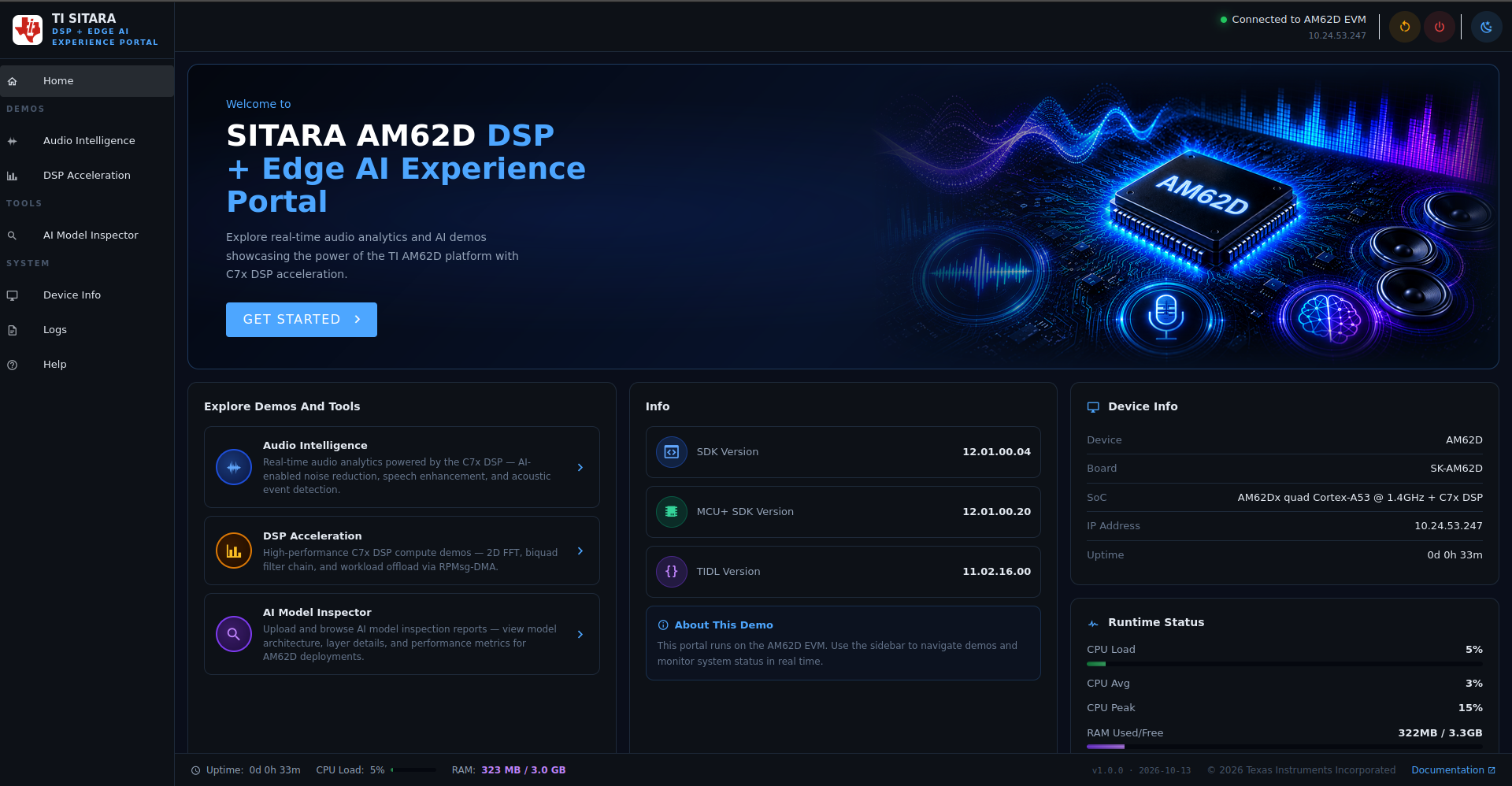
Fig. 3.1 AM62DX out-of-box web GUI home screen
This is the Sitara AM62D DSP + Edge AI Portal, a web-based user interface for managing and evaluating Texas Instruments’ AM62D Evaluation Module. The dashboard allows developers to launch real-time audio analytics and DSP compute demos, and monitor live system telemetry like CPU load, memory footprints, and SDK software versions.
To open the EdgeAI portal, follow these steps:
Once the AM62D EdgeAI image is flashed (see Power ON and Boot), get the IP address of the EVM using
ip addrOpen a browser and navigate to
<ip-addr>:3000This starts the web server.
The left navigation sidebar starts with Home, then groups the rest into three sections:
Demos —
Audio Intelligence(speech enhancement and audio classification) andDSP Acceleration(2D FFT, biquad filter chain, and workload offload via RPMsg-DMA compute demos).Tools —
AI Model Inspectorto upload and browse TIDL (TI Deep Learning) model inspection reports, including architecture, layer details, and performance metrics.System —
Device Info,Logs, andHelp.
The main panel opens with a welcome banner — SITARA AM62D DSP + Edge AI Portal — and a
GET STARTED button that jumps straight to the Audio Intelligence demo. Below it, an
Explore Demos And Tools panel opens or shows the same three entry points (Audio
Intelligence, DSP Acceleration, AI Model Inspector) as clickable cards with a one-line
description each.
The home screen surfaces the board’s connection state and identity at a glance:
Connection status — upper-right banner shows
Connected to AM62D EVMalong with the board’s IP address.Info panel — current
SDK Version,MCU+ SDK Version, andTIDL Versioninstalled on the board.Device Info panel —
Device,Board,SoC,IP Address, and systemUptime.Runtime Status panel — live
CPU Load,CPU Avg,CPU Peak, andRAM Used/Free, refreshed continuously while the portal is open.
A status bar at the bottom of every page repeats Uptime, CPU Load, and RAM for
quick reference while you are deep in a demo page, along with the portal version, build date,
and a link to the full documentation.
A theme toggle in the top navigation bar switches the entire portal between dark mode (default) and light mode. The selection applies immediately across all pages and persists as you navigate between demos.
3.2. Speech Enhancement Demo
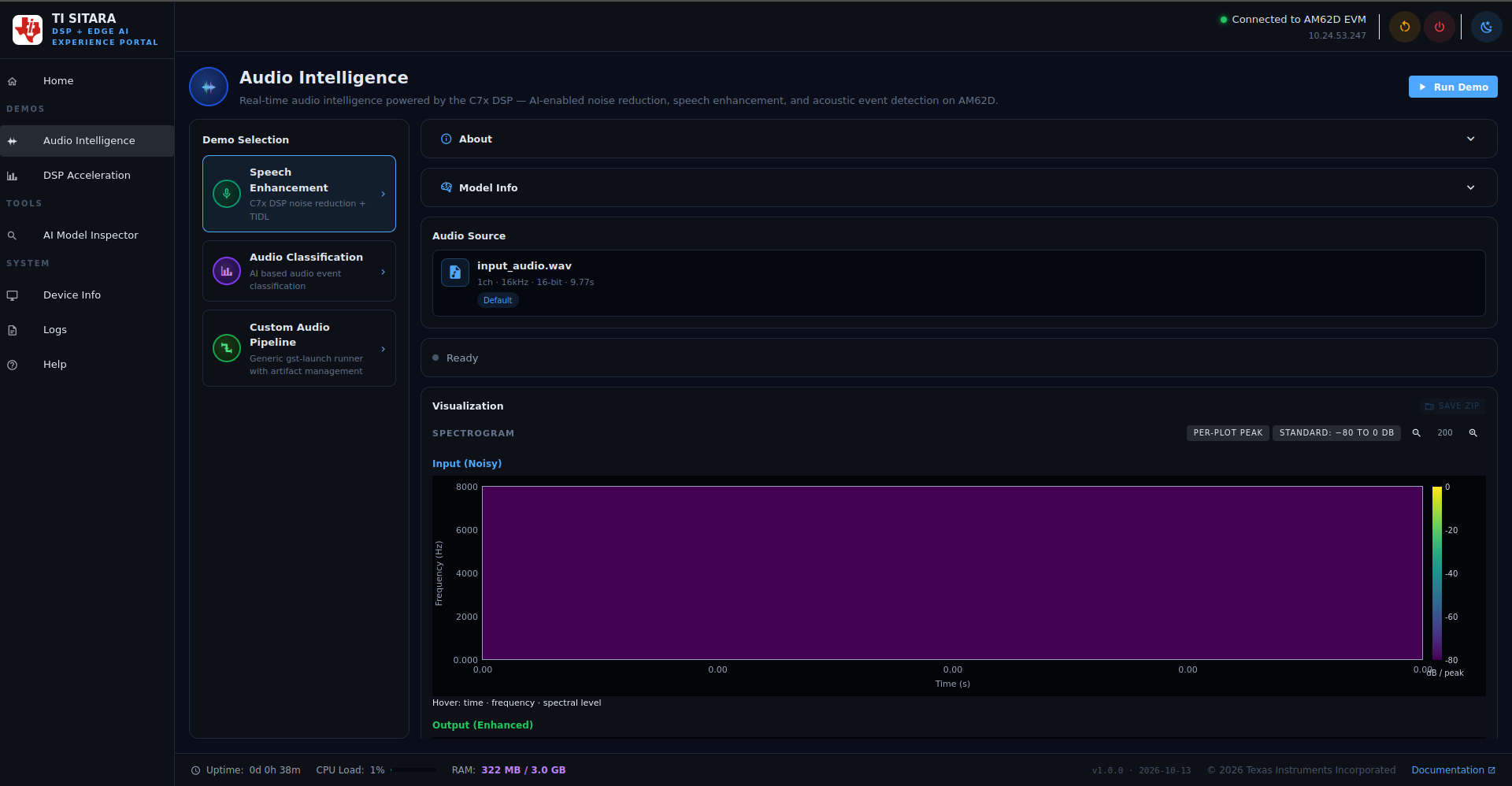
Fig. 3.2 AM62DX web GUI — speech enhancement demo
This demonstration showcases real-time speech enhancement. It integrates noise reduction powered by the C7x™ DSP to significantly improve speech quality.
Under Demo Selection on the left, three options are available:
Speech Enhancement — C7x™ DSP signal processing + GCRN model inference
Audio Classification — C7x™ DSP + YAMNet/VGGish classification models
Custom Audio Pipeline — a generic
gst-launchrunner with artifact management for running custom GStreamer pipelines from the portal.
The About and Model Info collapsible panels describe the demo and the underlying
GCRN-based noise-suppression model. The Audio Source card shows the active input file
(for example input_audio.wav — 1ch, 16 kHz, 16-bit, 9.77s) with a Default tag, and a
status indicator (Ready, Running, etc.).
To run the speech enhancement demo:
Click Run Demo in the upper-right corner to begin the process. The status line below the Audio Source card changes from
Readyto running, and the button itself becomes Stop Demo.Allow the system to complete the processing cycle.
Once finished, the interface will display both the original input and the processed output audio files.
Use the play button on the input file to hear the original noisy audio.
Use the play button on the output file to hear the enhanced version.
Speech Enhancement Result
The Visualization section plots both a spectrogram and a waveform for the Input
(Noisy) and Output (Enhanced) audio, stacked one above the other, with hover tooltips
reporting time, frequency, and spectral level (or sample amplitude for the waveform).
Spectrogram controls let you switch between per-plot peak (auto-scale each spectrogram independently)
and fixed -80 to 0 dB color scale, zoom the time axis, and SAVE ZIP to download the plotted data
and waveforms for offline analysis.
Fig. 3.3 AM62DX web GUI — speech enhancement demo Result 1 (input versus enhanced spectrograms)
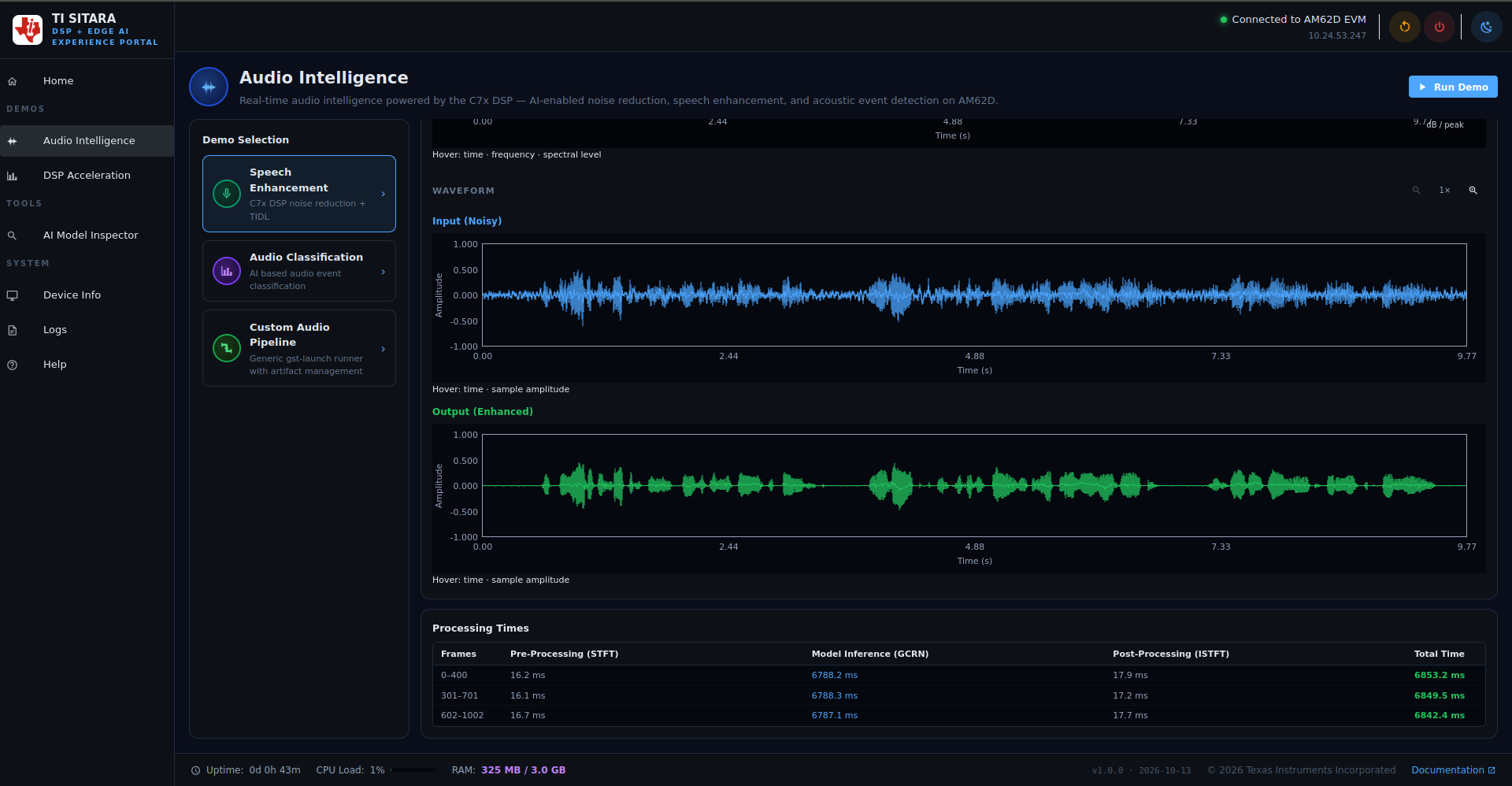
Fig. 3.4 AM62DX web GUI — speech enhancement demo Result 2 (input versus enhanced waveforms, and per-stage processing times)
Below the waveforms, a Processing Times table breaks down DSP/TIDL latency per
processed frame range (for example 0-400, 301-701, 602-1002 — overlapping
ranges reflecting the overlap-save chunking described in
YAMNet & VGGish based Audio Classification) into Pre-Processing (STFT), Model
Inference (GCRN), Post-Processing (ISTFT), and Total Time. In a typical run, STFT
and ISTFT each take on the order of 10-20 ms per chunk while the GCRN model inference step
dominates the total, so this table is the quickest way to see where latency budget on the
DSP is actually going.
3.3. Audio Classification Demo
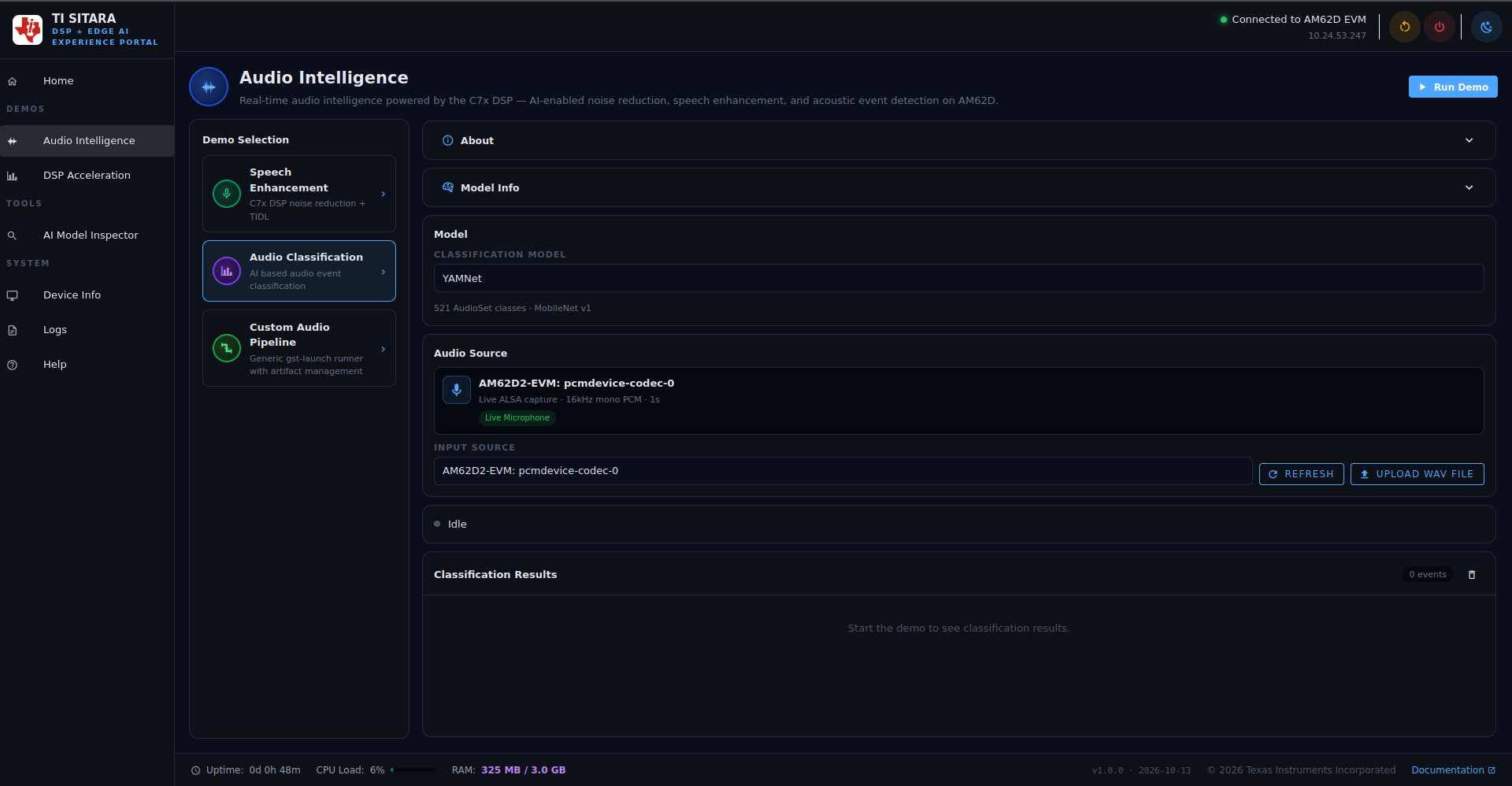
Fig. 3.5 AM62DX web GUI — audio classification demo
This demo demonstrates audio classification using YAMNet and VGGish models on the AM62D C7x™ DSP.
The Model panel lets you pick the Classification Model — YAMNet (521 AudioSet
classes, MobileNet v1) or VGGish (10 UrbanSound8K classes, VGGish features); the panel
shows this class-count and backbone caption under whichever model is selected, so you can
confirm the right one before running. Unlike Speech Enhancement, which defaults to a sample
WAV file, Audio Classification defaults to live input: the Audio Source card shows
AM62D2-EVM: pcmdevice-codec-0 tagged Live Microphone (live ALSA capture, 16 kHz mono
PCM, 1s chunks). The Input Source dropdown lets you switch to a different captured device
with REFRESH, or classify a recorded clip instead with UPLOAD WAV FILE.
To run the audio classification demo:
Select Audio Classification from the Demo Selection menu on the left.
Select Model from the model list — YAMNet or VGGish.
Select the audio source: leave it on the live microphone, or pick/upload a WAV file.
Click Run Demo in the upper-right corner; the status line shows
Idlebefore you start.Check the audio classification result in the output section below.
While running, a live status line (Running Audio Classification) replaces Idle above
the results, and the upper-right button becomes Stop Demo. The Classification Results
panel lists each detected event with a running count and a wall-clock timestamp, newest first
(for example 13 Silence 02:11:06 pm), and can be cleared with the trash icon. Below it, a
Top-10 Predictions Over Patches heatmap plots the model’s top classes against successive
audio patches over time, with a logit-value color scale for confidence — useful for seeing
which classes the model was close to choosing, not just the winning one.
YAMNET Model Result
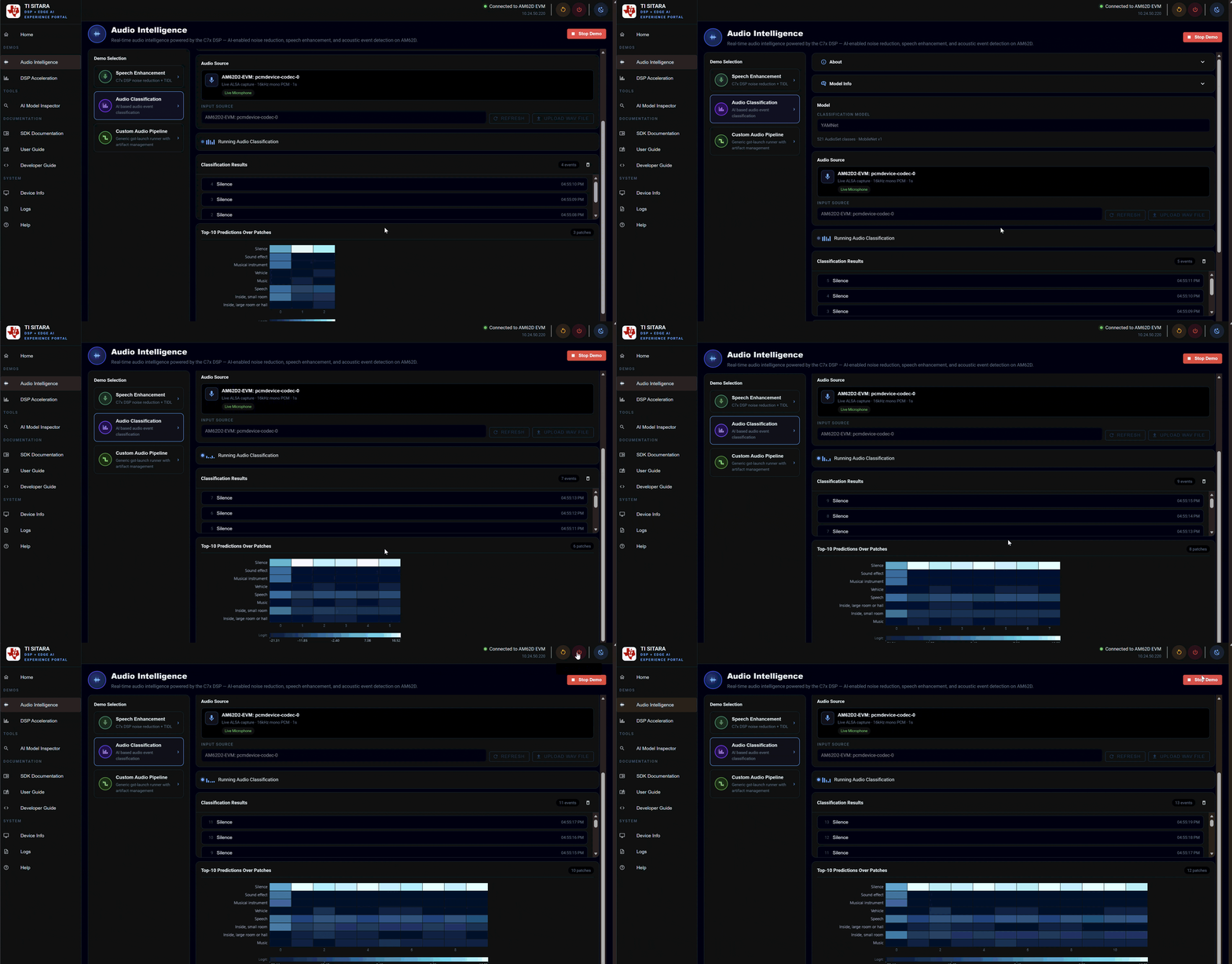
Fig. 3.6 AM62DX web GUI — audio classification YAMNet demo.
VGGish Model Result
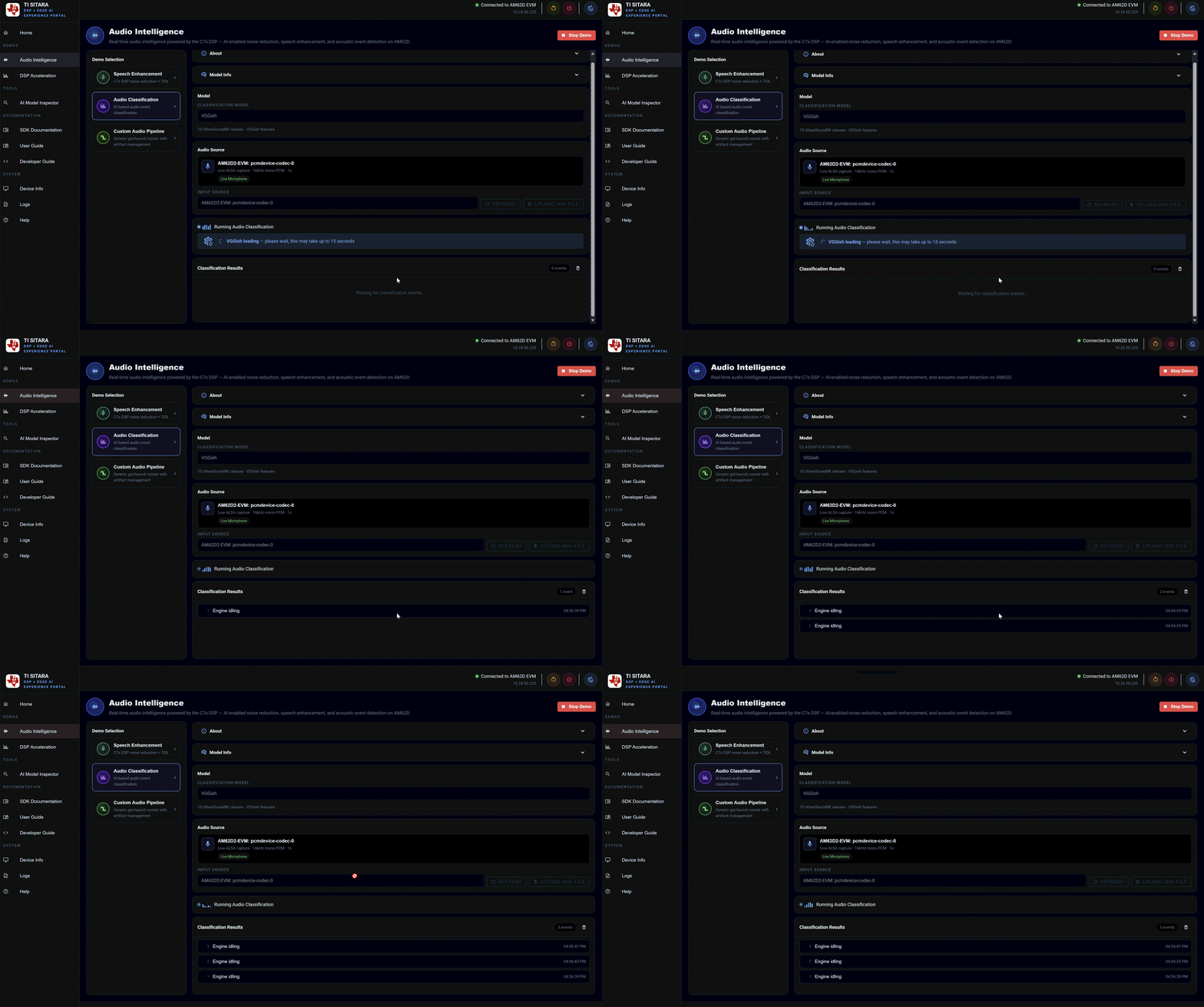
Fig. 3.7 AM62DX web GUI — audio classification VGGish demo
3.4. Custom Audio GStreamer Pipeline
The Custom Audio Pipeline demo in the sidebar lets you run arbitrary GStreamer
pipelines directly on the AM62D. This is useful for prototyping custom audio processing
chains, debugging GCRN-based models with custom parameters, or testing YAMNet/VGGish
classification on different audio sources.
To use your own trained model, see Integrating a New Model.
The interface has three main areas:
Pipeline Presets — quick-start tabs that load pre-built pipelines (
Speech Enhancement,Classification (YAMNet),Classification (VGGish),Custom). Pre-configured pipelines are hidden behind the phrase “No saved pipelines yet — write a command and click Save As”.Pipeline Command — a full
gst-launch-1.0command editor. Copy and paste buttons let you transfer the command to the clipboard or load a saved preset.Input Files and TVM Artifacts — collapsible panels for staging input audio files and model files (TIDL artifacts).
Below the Pipeline Command, a collapsible Input Source dropdown shows the device
or file to be piped into the pipeline, and a status indicator shows whether the system is
ready, running, or idle.
3.4.1. Speech Enhancement Pipeline with GCRN
This preset runs a GCRN-based noise-suppression pipeline using the C7x™ DSP and TIDL runtime.
To run the GCRN speech enhancement pipeline:
Click the
Speech Enhancementpreset tab to load the pre-built command.The
Pipeline Commandbox displays the full GStreamer command.Click
Run Demoto start the pipeline.The
Pipeline Outputpanel displays processing logs, including DSP execution times, model inference latency, and phase transitions (PREROLLED,PLAYING, etc.).After execution, the output file is ready for playback — download it or use the play button to verify the noise reduction.
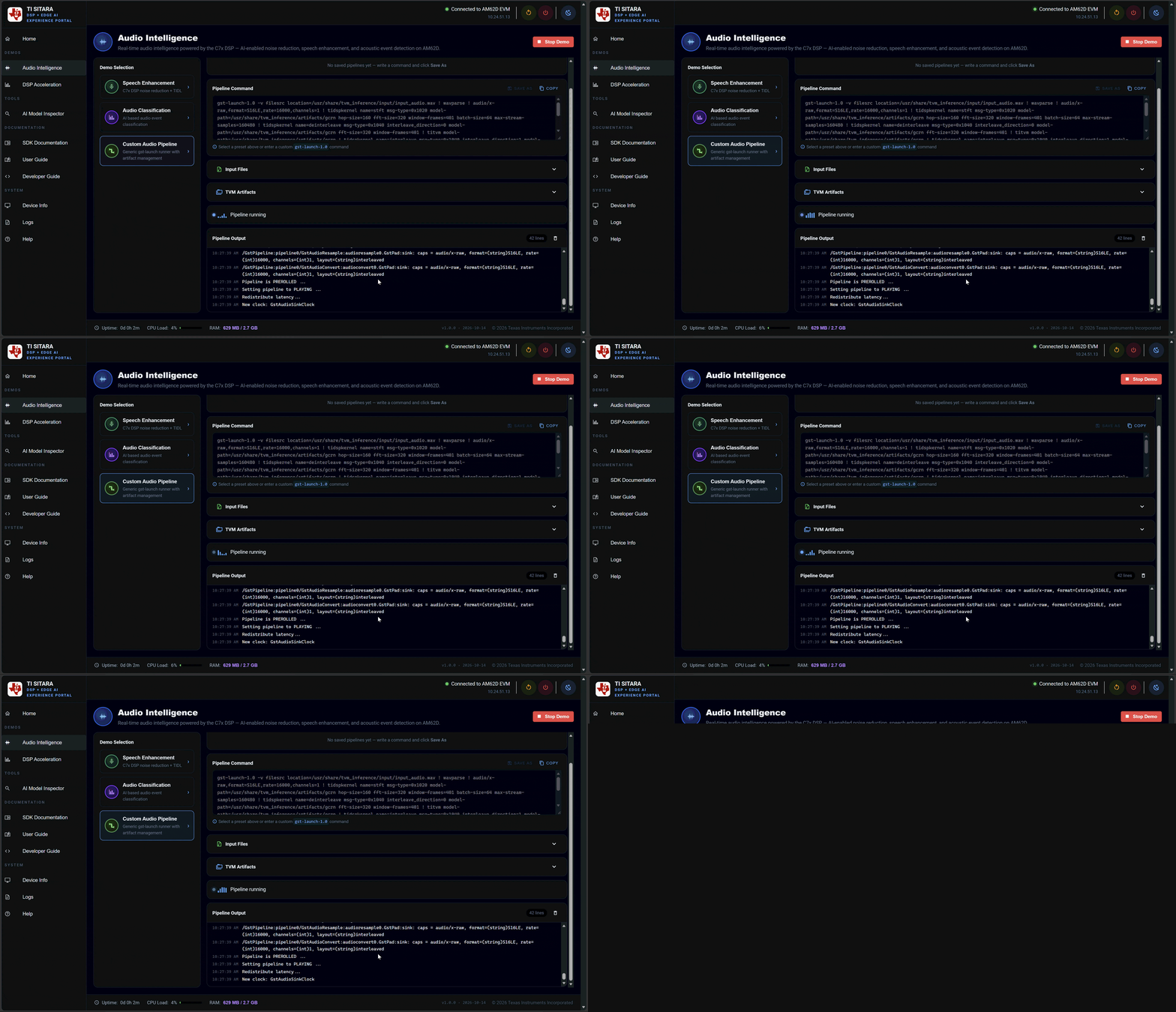
Fig. 3.8 Output from the GCRN pipeline
3.4.2. Audio Classification with YAMNet
This preset runs YAMNet (AudioSet, 521 classes) using the C7x™ DSP for real-time audio event classification.
To run the YAMNet classification pipeline:
Click the
Classification (YAMNet)tab.The
Pipeline Commandbox displays the full GStreamer command for YAMNet classification.Choose the audio source — a file or live microphone — from the
Input Sourcedropdown.Click
Run Demo.The
Classification Resultsoutput shows top-3 predictions per audio window with confidence logits; execution ends after processing the full input.
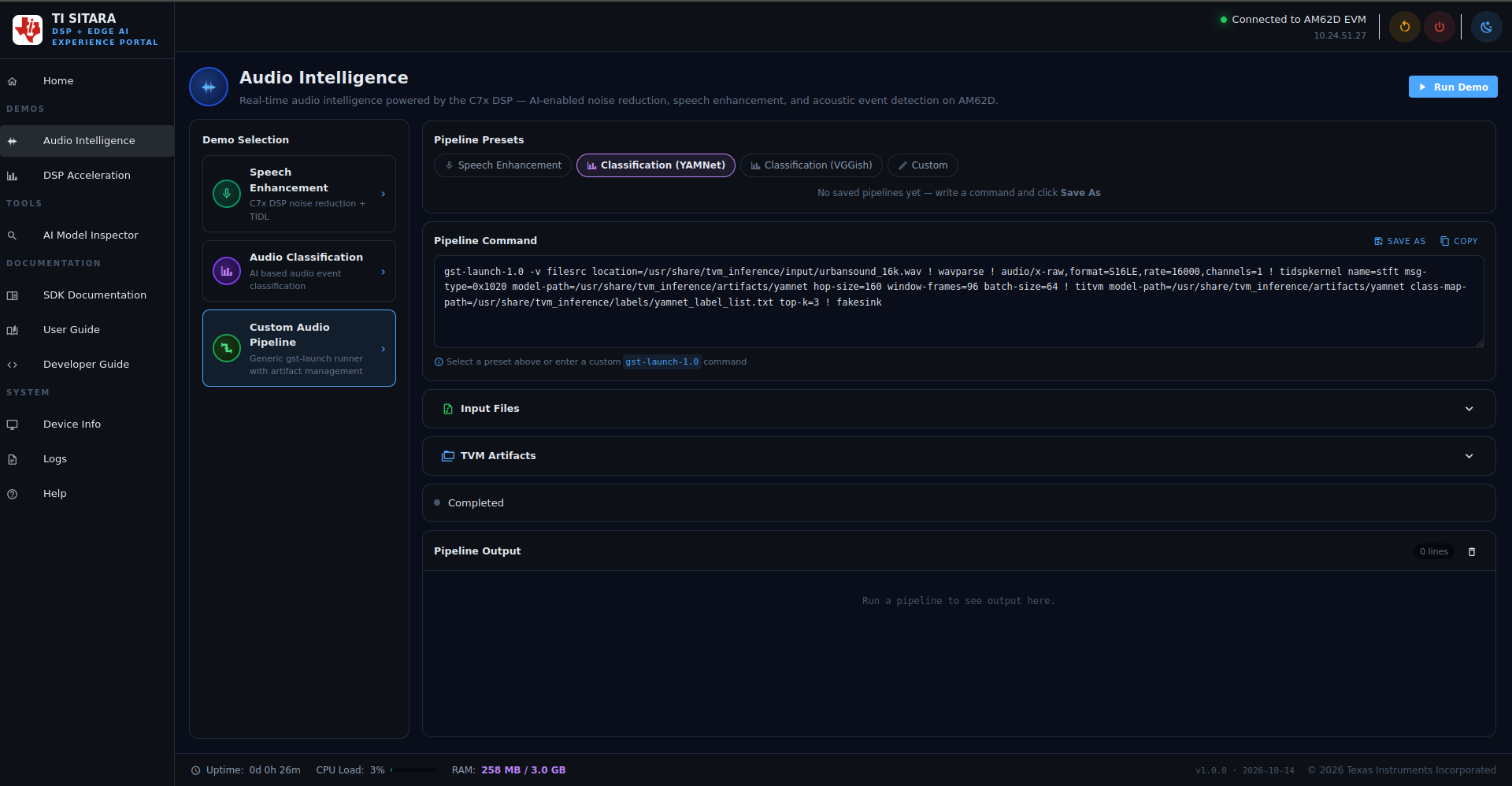
Fig. 3.9 YAMNet pipeline command
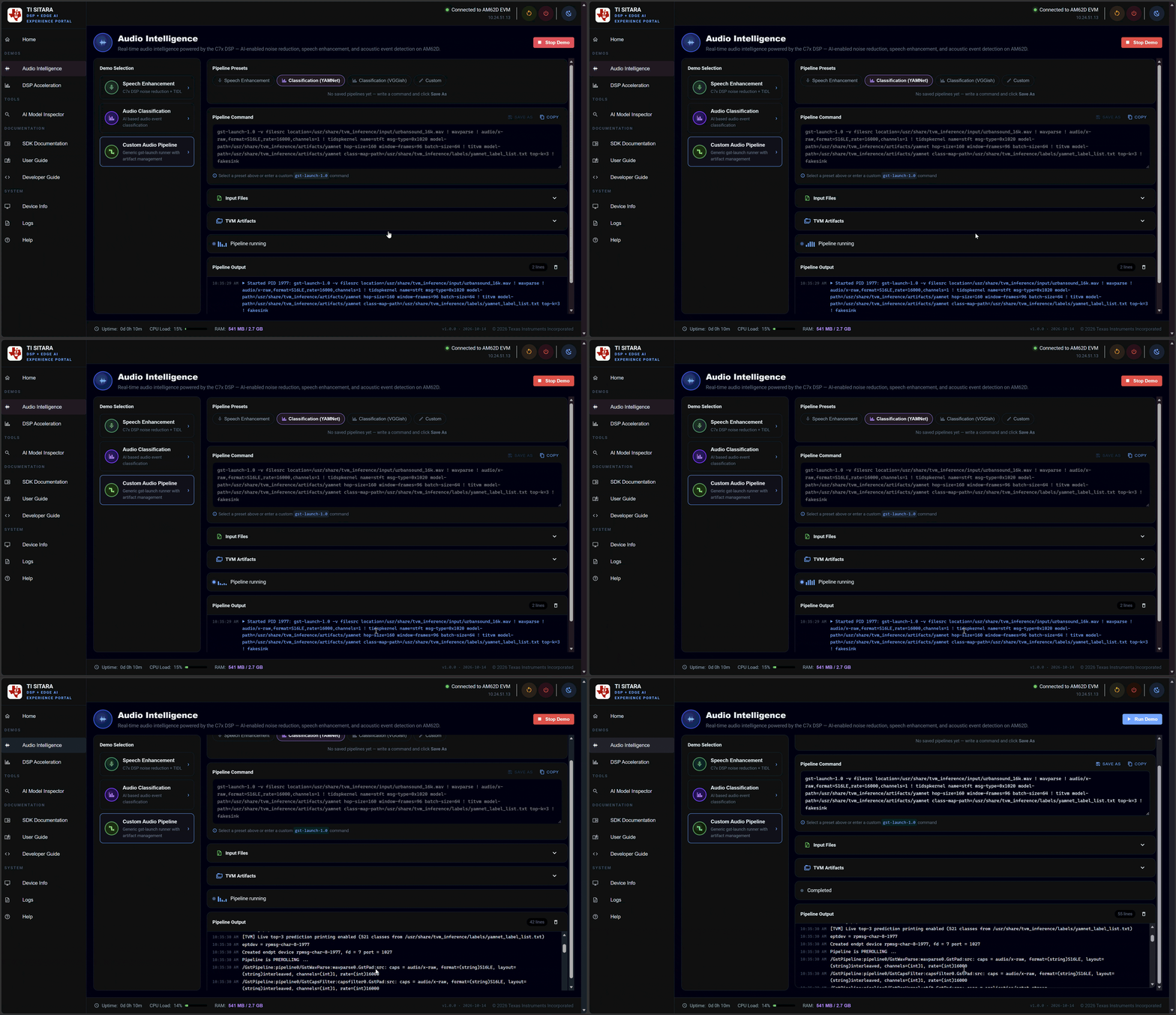
Fig. 3.10 YAMNet inference output showing top-3 predictions
3.4.3. Audio Classification with VGGish
This preset runs VGGish (UrbanSound8K, 10 classes) for environmental sound classification.
To run the VGGish classification pipeline:
Click the
Classification (VGGish)tab.The command is similar to YAMNet but uses VGGish model weights and UrbanSound8K class labels.
Select your audio source and click
Run Demo.The output lists detected events with confidence scores for each of the 10 UrbanSound8K classes.
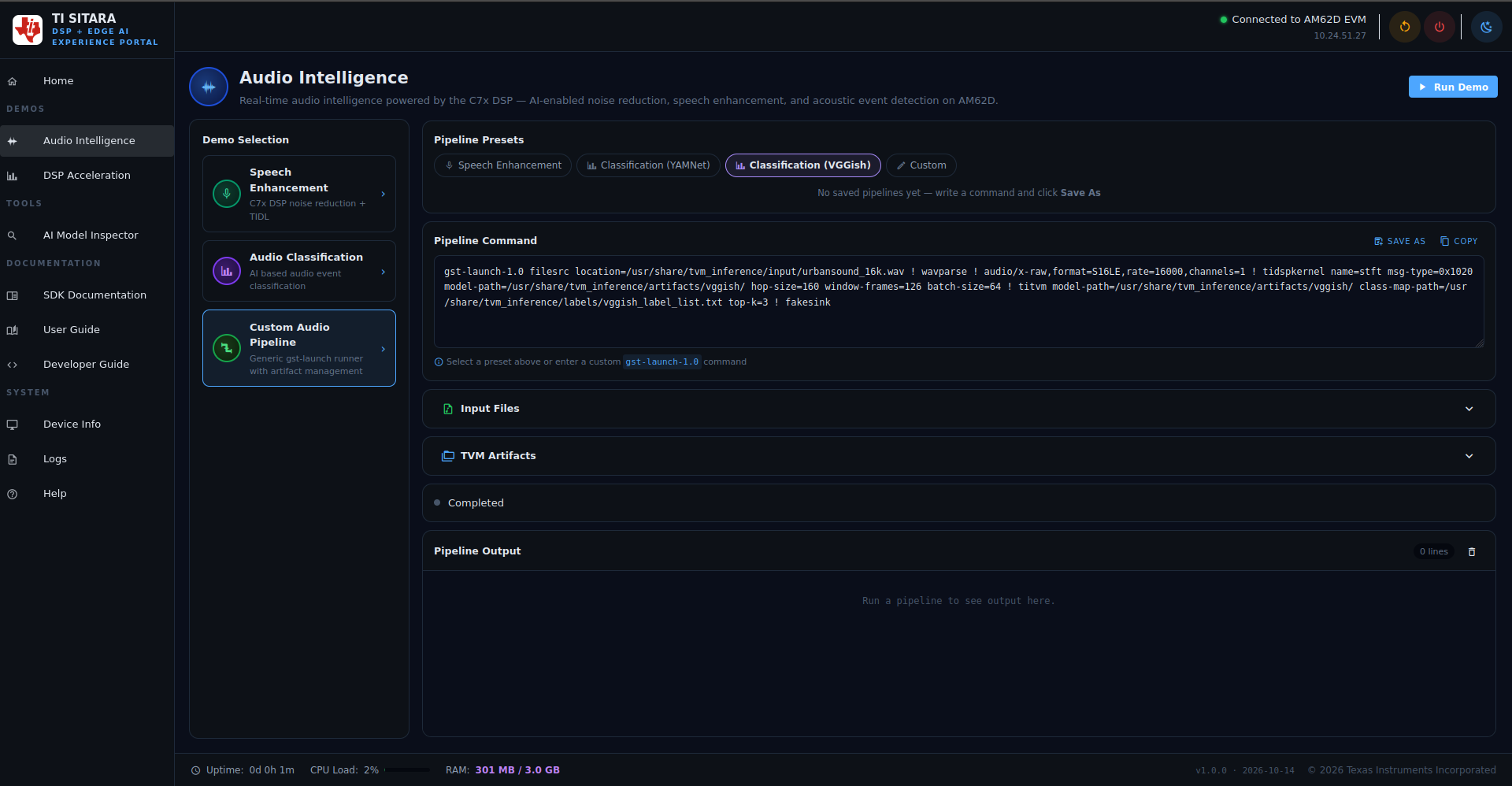
Fig. 3.11 VGGish classification pipeline command
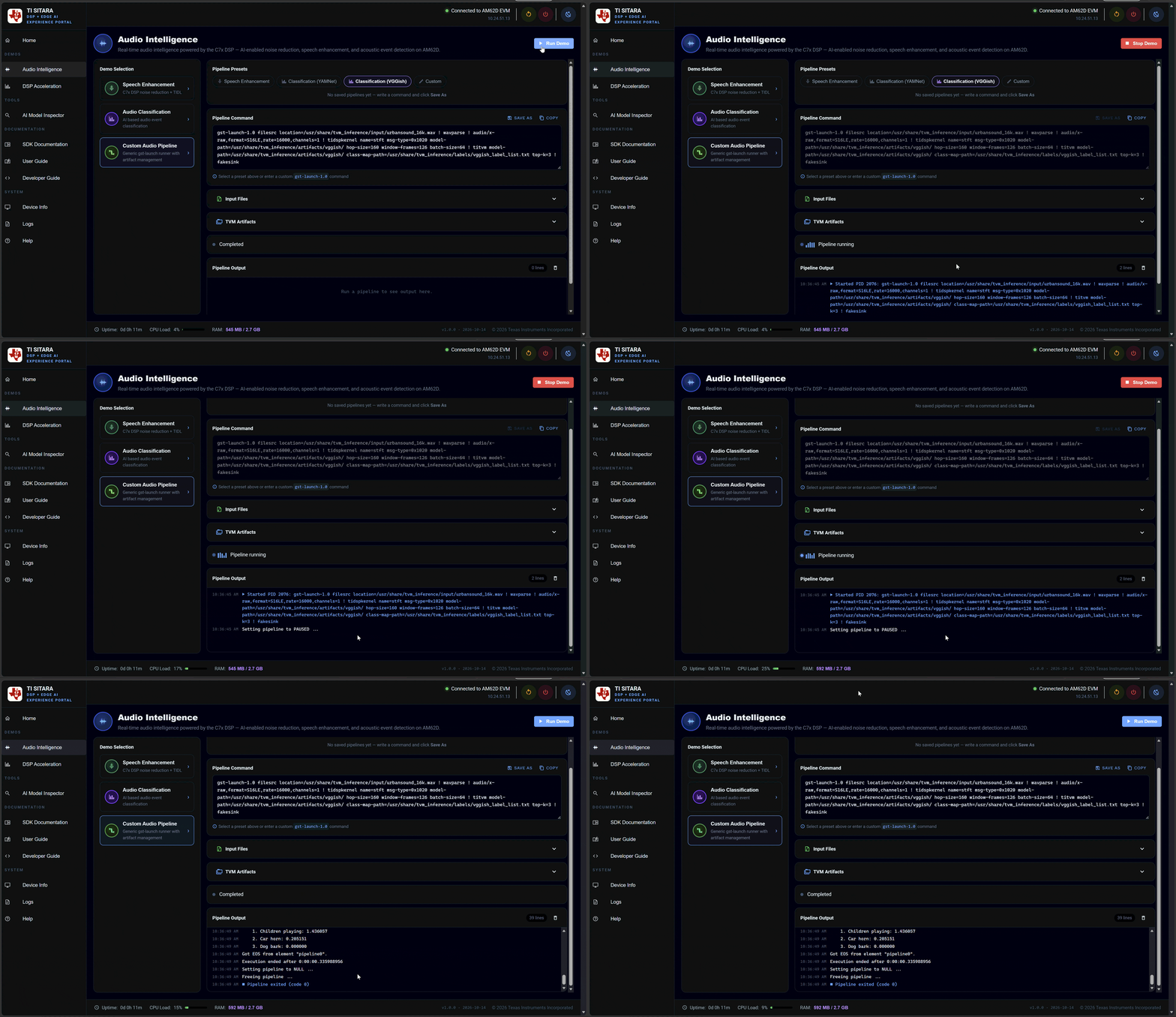
Fig. 3.12 VGGish inference output